You're on a team call right now. A dog is barking behind one participant, someone's keyboard is clattering through an open microphone, and two people start talking over each other before one says, “Sorry, you go ahead.” That small mess is exactly why mute exists.
But mute isn't just a button. It's a control system involving the meeting app, your operating system, your headset, the phone keypad, host permissions, and the unwritten rules of conversation. If you only know where one on-screen microphone icon lives, you're unprepared for the call that matters.
This guide shows how to mute on conference call platforms including Zoom, Microsoft Teams, Google Meet, and browser-based rooms. It also covers iPhone and Android controls, telephone dial-in codes, accessibility workflows, greyed-out mute buttons, and the etiquette experienced callers follow without making everyone wait. If the conversation involves sensitive information, review practical conference control options and consider how to prevent eavesdropping before you start.
The Call You're On Right Now
The fastest fix for a noisy call is simple: join muted, stay muted until you need to speak, and verify your status before saying anything private. That habit prevents background noise from becoming everyone else's problem and reduces the chance that a side conversation reaches the meeting.
Conference-call muting became a normal workplace behavior during the pandemic. In an analysis of earnings calls, conferences, and shareholder meetings, the phrase “on mute” appeared 429 times in Q2 2020, compared with fewer than 100 mentions per quarter before the pandemic. Mentions remained high afterward, showing that muting had become a routine business practice rather than a niche telephony habit. The conference-call analysis provides useful context for why this control now feels universal.
The behavior is practical, not ceremonial. Survey data found that 75% of respondents muted their line at least once during a call, while 80% of mobile callers were more likely to use mute than landline callers. Respondents cited background-noise removal, side conversations, bathroom breaks, and eating as reasons for muting, with background noise the most common reason at 69%. The Harvard conference-call guidance documents those findings.
Practical rule: If you're not speaking, mute before the dog, keyboard, delivery driver, or nearby colleague does it for you.
The details change depending on how you joined. A desktop app may offer a keyboard shortcut and push-to-talk. A mobile app may hide the microphone control below a scrolling toolbar. A phone dial-in may require a star code, while the host can silence every participant from the bridge. The social layer matters too. A technically correct mute action can still create awkwardness if you unmute too slowly, speak while muted, or forget that you joined the same meeting from a second device.
Muting on Desktop Across Zoom, Teams, Meet, and the Browser
On a computer, locate the mute control before the meeting starts. Don't wait until someone asks you a question while your toolbar is hidden. Most platforms place the microphone toggle in the call-control bar, but a small window, screen share, or floating toolbar can move it out of sight.
Desktop controls and shortcuts
Zoom places the Mute or Unmute button in the bottom toolbar. On Windows, use Alt+A. On Mac, use Command+Shift+A. Holding the Spacebar temporarily enables push-to-talk while you speak, then returns you to mute when you release it.
Microsoft Teams uses the microphone toggle in the call-control bar. The default shortcuts are Ctrl+Shift+M on Windows and Command+Shift+M on Mac. Teams can also restrict participant unmuting, so a disabled control may reflect a host decision rather than a software failure.
Google Meet uses the microphone circle in the bottom bar. Press Ctrl+D on Windows or Command+D on Mac. Meet also supports holding the Spacebar for a temporary speaking action in supported desktop workflows.
Browser-based WebRTC rooms, including Google Meet in Chrome, Whereby, and Around, still depend on the in-page control. The first visit may trigger a browser permission prompt. Approve microphone access only for the meeting site you trust, then check the room's own help menu for its current shortcut. Browser controls and site controls are separate, and either one can block your audio.
| Platform | Windows Shortcut | Mac Shortcut | Button Location |
|---|---|---|---|
| Zoom | Alt+A | Command+Shift+A | Bottom meeting toolbar |
| Microsoft Teams | Ctrl+Shift+M | Command+Shift+M | Call-control bar |
| Google Meet | Ctrl+D | Command+D | Bottom control bar |
| Browser WebRTC rooms | Site-specific | Site-specific | In-page meeting controls |
Make the control reliable
Keep the meeting window large enough that the toolbar doesn't collapse. If the app offers a shortcut, learn it before presenting or moderating. People who record or interview remote guests may also benefit from the workflow described in this podcast with remote guests guide, especially when switching between conversation and production tasks.
A host may disable participant unmuting entirely. In that case, your local microphone icon won't override the meeting policy. Look for Ask to unmute, Raise hand, or a host prompt instead. Your enterprise setup should document these permissions as part of its enterprise communications solution, not leave every caller to guess during a live meeting.
Muting on iPhone and Android for the Big Four Apps
Mobile mute controls are easy to find when the phone is held normally and much harder to find when the toolbar scrolls. If you don't see the microphone icon, tap the screen, swipe the in-call controls, or rotate the phone. On smaller displays, the mute control can sit below the fold.
In Zoom mobile, look for the large circular Mute button at the bottom center. The More menu can expose push-to-talk options after you swipe up. Teams mobile places the microphone toggle at the bottom of the active call view, while a long press may reveal raise-hand and reaction controls. In Google Meet mobile, tap the microphone circle, and use the available long-press behavior to switch between always-muted and push-to-talk modes.
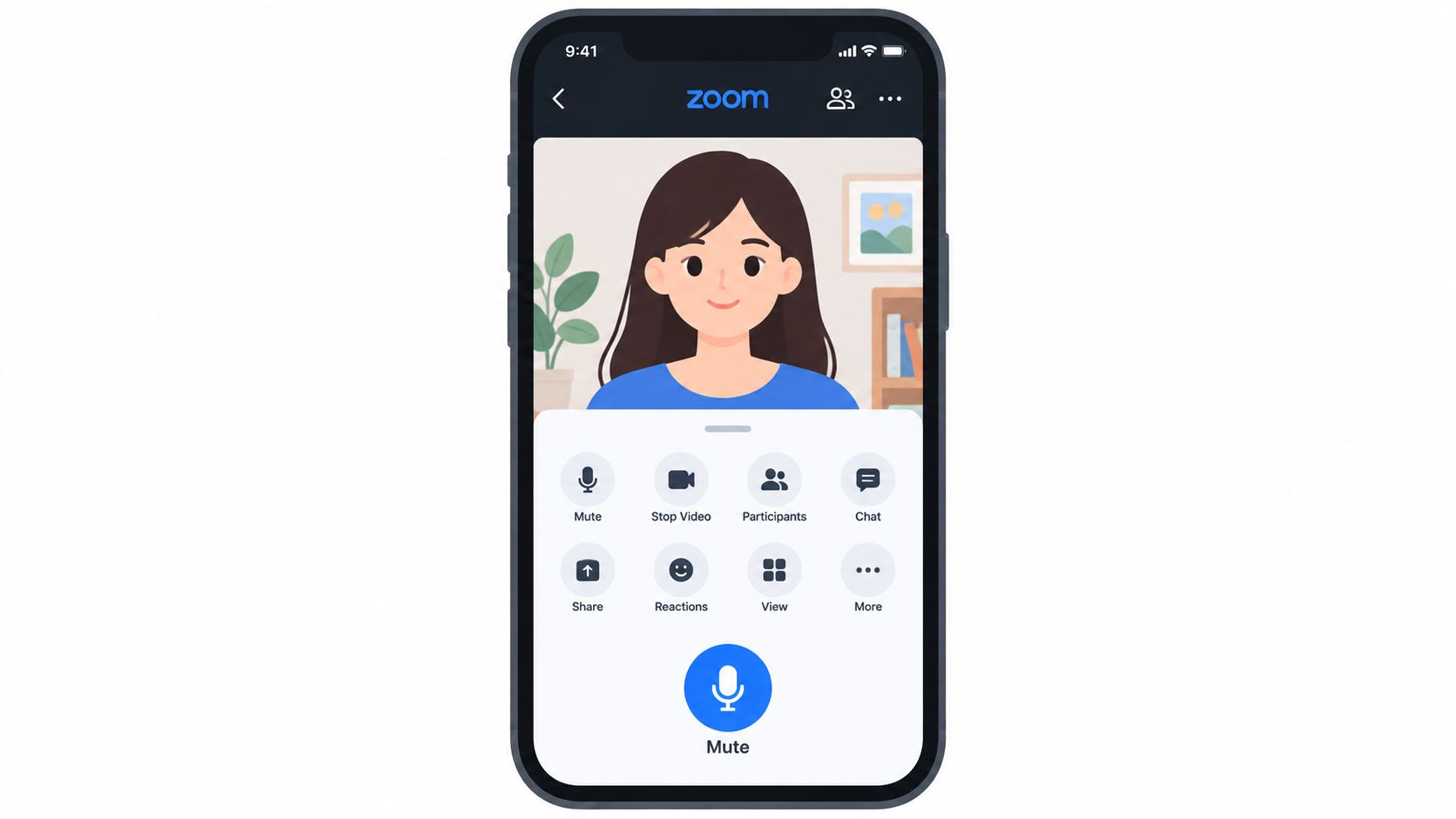
Generic WebRTC rooms in Safari or Chrome usually use the same pattern: tap the screen to reveal controls, then tap the microphone icon. The browser may also ask for permission before the room can access your microphone. If permission was denied, changing the in-room toggle won't solve the problem. You'll need to change the site permission in the browser settings.
The mobile audio traps
The biggest mobile mistake is assuming the microphone belongs to the device you're holding. On both iOS and Android, the operating system may route input through a paired Bluetooth headset, car system, or speaker even when another headset is in your ear. Audio cues can also come through the wrong speaker, so confirm which device the meeting app lists as active.
Android notifications can create another interruption. With Do Not Disturb turned off, an incoming call or notification may briefly alter the audio route or distract you from the mute state. Before joining an important call, check the selected microphone and speaker, lock the phone orientation if the controls keep moving, and mute before you put the phone down.
Phone Dial-Ins and Star Codes That Behave Differently
A dial-in participant isn't using the same mute control as someone inside Zoom, Teams, or Meet. The phone keypad sends tones to the conference bridge, and the bridge decides what those tones do. That distinction explains why an in-app microphone icon can appear muted while a phone line remains open, or why a host can silence you remotely even though your phone hasn't changed.
Common platform behavior includes *6 as a mute toggle on Zoom, *5 on many Microsoft Teams Audio Conferencing accounts, and *6 for Google Meet phone participants. Bridge providers can change these mappings, so treat the invite or audio prompt as the authority. Some older systems use separate commands, such as one code to mute and another to unmute, rather than a single toggle.
| Platform | Mute | Unmute | Toggle | Notes |
|---|---|---|---|---|
| Zoom phone audio | *6 | *6 | *6 | Common toggle, bridge behavior can vary |
| Microsoft Teams Audio Conferencing | *5 on many accounts | *5 on many accounts | *5 on many accounts | Confirm with the meeting prompt |
| Google Meet phone audio | *6 | *6 | *6 | Phone bridge configuration matters |
| Legacy conference bridges | Provider-specific | Provider-specific | Provider-specific | Some use separate mute and unmute codes |
Host control changes the outcome
Moderators can enable entry muting, presentation mode, question-and-answer mode, or other controls that affect everyone across devices. When the host prevents participant unmuting, pressing the star code may not restore your audio. You may need to raise your hand, use chat, or wait for the moderator to authorize you.
The practical sequence is short:
- Join and identify yourself if the bridge requests it.
- Press the documented code and listen for the audio confirmation.
- Speak a test phrase only when appropriate, preferably before the meeting begins.
- Keep the code visible for the first call of the morning.
- Switch to a different route if the bridge ignores keypad tones.
Third-party VoIP softphones don't always pass DTMF tones correctly. If the code fails, wait for the prompt, press the keys deliberately, and try cellular audio instead of Wi-Fi calling. Don't assume silence means mute. Verify what the bridge announces.
If you're joining by phone because you don't want to expose your personal contact details, review the considerations in this phone number privacy guide before choosing a dial-in method.
Mute as an Accessibility Tool, Not Just a Button
Treating mute as etiquette misses its accessibility value. Default-muted entry gives participants time to orient themselves before their microphone becomes live. Push-to-talk lets someone speak deliberately without managing a persistent open microphone, which can help people using voice amplifiers, managing stuttering, dealing with anxiety, or joining from an unpredictable environment.
Zoom's hold-the-Spacebar workflow is useful because it turns speaking into a temporary action. Teams supports Ctrl+Space for controlled unmuting in supported workflows. Meet users can use the microphone control and available push-to-talk behavior instead of relying on a persistent unmuted state. On touchscreens, a hold-to-unmute pattern can also be easier for users who find a single tap unreliable.
The accessibility guidance from RNID on video-conferencing technology emphasizes push-to-talk and keyboard-based workflows as important controls, not decorative conveniences. Meeting hosts should explain the available options instead of assuming everyone can react quickly to a tiny microphone icon.
Captions and transcripts also work better when participants suppress avoidable background noise. That doesn't make mute a substitute for captions, interpreters, or other accommodations. It does make the audio signal cleaner for people who rely on speech clarity. A basic noise gate explanation can help audio teams understand the difference between muting a channel and filtering unwanted sound.
When the Mute Button Is Greyed Out or Stubborn
A greyed-out mute button usually has a reason. Start with permissions, not reinstalls.
Check the host first
The organizer may have enabled Prevent participants from unmuting themselves. That setting makes the disabled control intentional. Look for Ask to unmute, Raise hand, or a message telling you that the host must authorize your microphone.
If other participants can speak but you can't, host policy is the leading suspect. Send a chat message or raise your hand rather than repeatedly clicking a control the meeting has locked.
Check the device path
If the host hasn't restricted you, work through the local audio chain:
- Microphone privacy: On macOS, review Microphone, Accessibility, and any relevant app permissions in System Settings. On Windows, check the microphone privacy controls under Settings, Privacy, and microphone access. A desktop app can be blocked even when the browser works.
- Selected input: Open the meeting app's audio settings and confirm the intended microphone. Bluetooth may have redirected input to AirPods, a car system, or another paired device.
- Competing applications: Close another meeting, recording tool, browser tab, or voice assistant that may be holding the microphone.
- Client health: Update the meeting app and restart the browser. An outdated client can display a control without successfully changing the audio state.
- Network path: A VPN or restrictive network can interfere with WebRTC audio. If policy allows, test without the VPN or use a different network.
Fast diagnosis: Disconnect Bluetooth, select the laptop microphone or USB headset explicitly, and rejoin. That resolves more “mute is broken” incidents than frantic toolbar clicking.
When software controls still fail, use the fallback ladder. Leave and rejoin, switch to another device, or dial in by phone. If you're already in a sensitive conversation, tell the host before changing routes so nobody mistakes a sudden disappearance for a dropped call.
Conference Call Etiquette That Experienced Callers Follow
Experienced callers don't toggle mute randomly. They choose one of three states based on what they're doing.
Muted is the default while listening, taking notes, coughing, eating, handling a delivery, or having a side conversation. Unmuted is for speaking clearly and intentionally. Push-to-talk is for situations where you need fast, controlled input without leaving the microphone open.
Large calls and breakout rooms should normally start muted. The exception is a small conversation where everyone is expected to respond naturally and the environment is quiet. Even then, mute before moving away from the desk or speaking to someone nearby.
Unmute without creating a second problem
When it's your turn, click or use the shortcut, wait a brief moment, check the unmuted indicator, and then speak. That small pause prevents the first word from disappearing and reduces the “Sorry, you go ahead” collision.
Avoid unmuting while another person is still finishing. If two people activate their microphones at once, stop and let the chair assign the floor. Don't make the group negotiate every turn through overlapping apologies.
The awkwardness comes from uncertainty, not mute itself. Show that you know your state, then speak when you have the floor.
Hosts have responsibilities too. Announce the mute policy at the beginning, enable mute-on-entry for large meetings, and explain how participants can request permission to speak. Don't unmute someone else unless there's a clear reason and they expect it. A host-side action can expose background conversation just as easily as a participant's mistake.
One final rule: if someone says, “I think you're muted,” check every device you joined with. You may be muted on the laptop but speaking into an unmuted phone, or muted in the app while the phone bridge remains live. Treat the indicator, the selected device, and the bridge prompt as separate signals.
Ciphar gives journalists, lawyers, researchers, and privacy-conscious teams a browser-based way to coordinate in short, identity-free conversations without accounts or installations. Visit Ciphar when you need an encrypted channel with client-side protection, temporary sessions, and no long-term message archive.