You're on a laptop, the other person is watching their phone, and the message can't wait until you find your handset. You need to send a short update, confirm a detail, or share a file without turning a simple task into an account, installation, or privacy problem. The right method depends less on your keyboard and more on which identity, device, and retention trade-offs you're willing to accept.
When You Actually Need to Text from a Computer
The phrase “text from a computer” covers several different workflows. A paired web app mirrors an existing phone-based service. An SMS gateway sends an ordinary carrier text from an email-style address. Browser-native encrypted chat keeps the conversation inside a web session, while a one-time identity-free room avoids linking the exchange to a phone number or persistent account.
That distinction matters. If you're replying to a friend who already has your number, pairing Google Messages or WhatsApp Web is usually the fastest choice. If you're reaching a phone number for a routine, non-sensitive update, an email-to-SMS gateway may be sufficient. If a source, client, patient, or incident-response contact shouldn't have to connect the conversation to your personal identity, a temporary encrypted room fits better.
Computer-originated texting has been possible since the beginning of SMS. On 3 December 1992, British engineer Neil Papworth used a personal computer connected to Vodafone's GSM network to send the first SMS message to Richard Jarvis's mobile phone, as documented in the history of SMS. SMS later became commercially available to consumers in Finland in 1993, and its 160-character limit encouraged concise, structured messages.
Practical rule: Choose the channel before you type. Convenience is not the same as confidentiality.
For adjacent desktop communication needs, this guide to calling from a PC in 2026 is useful when a text exchange would create unnecessary back-and-forth. The rest of this article focuses on four practical routes and the point where each one stops being appropriate.
Sending Texts Through Paired Web Apps
Paired web apps are the mainstream answer to how to text someone on a computer. They let you use a full keyboard while the phone remains the underlying account and network connection. That convenience comes with a simple fact many guides bury: you're extending an existing mobile session to another device, not creating a private desktop-only channel.
Google Messages for Web
For Android users, open Google Messages on the phone, select the account or menu option for Messages for web, then open the Google Messages web page on the computer. Use the phone to scan the QR code shown in the browser and confirm the pairing. The browser can then display conversations and send SMS through the paired phone.
This arrangement is useful for routine personal messages. It also means that conversations, contacts, and the browser session may remain accessible on a shared or managed computer unless you explicitly unpair the device and close the session.
Microsoft Phone Link
On a Windows computer, open Phone Link and follow its pairing prompt. On the phone, install or open the companion Link to Windows experience, approve the requested permissions, and scan or confirm the displayed code. Depending on the setup, Phone Link can expose messages, notifications, contacts, photos, and other phone activity on the computer.
Pairing is the price of that integration. You may need a Microsoft account, and you're adding another device, application, permission set, and active session to secure.
WhatsApp Web
Open WhatsApp on the phone, go to Settings or the three-dot menu, choose Linked devices, and select Link a device. Open WhatsApp Web on the computer, scan the QR code, and approve the new linked session on the phone. WhatsApp then makes the relevant account conversations available in the browser.
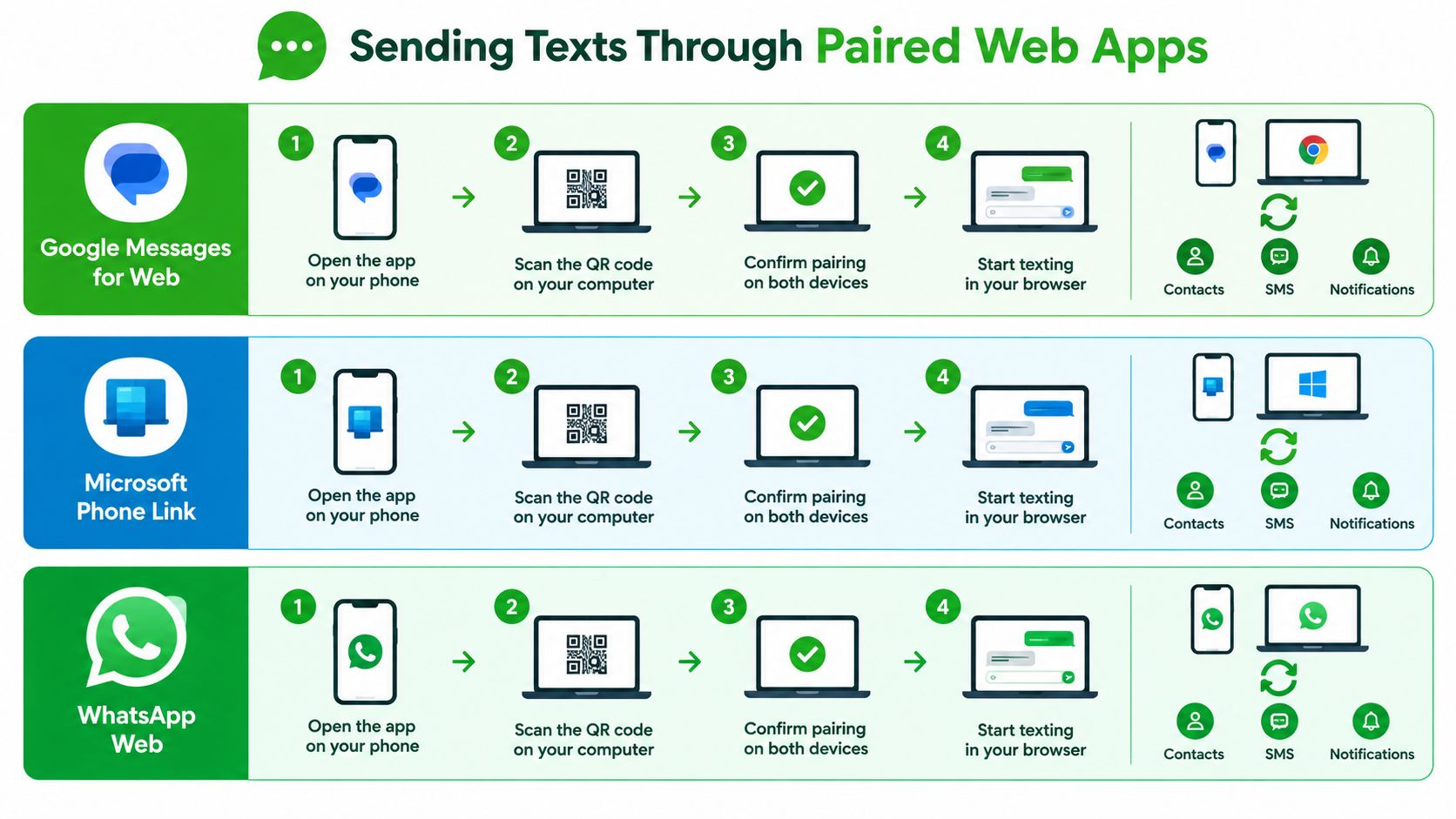
| Method | What you need | What the computer can expose | Best fit |
|---|---|---|---|
| Google Messages for Web | Android phone and browser | SMS conversations and contacts | Personal SMS replies |
| Microsoft Phone Link | Windows PC, phone, and pairing setup | Messages, notifications, contacts, and related phone data | Integrated Windows workflows |
| WhatsApp Web | Phone with WhatsApp and browser | WhatsApp conversations and account activity | Existing WhatsApp contacts |
Always unpair after using a borrowed, shared, or workplace computer. In WhatsApp, return to Linked devices and remove the browser session. For Messages or Phone Link, sign out or disconnect from the phone and close the browser. A QR code gets you started, but it doesn't decide whether the session remains safe afterward.
Forwarding SMS or Using Email-to-SMS
Email-to-SMS gives you a desktop compose window while keeping delivery inside the carrier's SMS system. Address an email to the recipient's phone number plus the carrier's gateway domain, and the carrier delivers the message as an ordinary text.
Use this format:
recipient-number@gateway-domain
For example, an AT&T number might use 5551234567@txt.att.net, if the carrier supports the gateway and the number follows its requirements. Delivery depends on the carrier, the recipient's plan, and whether the gateway remains active.
Common US gateway domains
| Carrier | Gateway domain | Example address |
|---|---|---|
| AT&T | txt.att.net | 5551234567@txt.att.net |
| Verizon | vtext.com | 5551234567@vtext.com |
| T-Mobile | tmomail.net | 5551234567@tmomail.net |
These domains are examples, not guarantees of current availability. Carriers can change or restrict gateway services, so confirm the recipient's carrier before relying on this method.
Email-to-SMS exposes an email identity or carrier relationship while preserving the phone-number relationship. The message remains ordinary SMS, and delivery can involve carrier logs and intermediary systems. Use it for appointment reminders, basic status updates, and other low-sensitivity communication.
NIST classifies SMS and PSTN-based authentication as a restricted method in its Digital Identity Guidelines, because interception, phishing, and related attacks can compromise it. The guidance addresses authentication, but the transport warning also applies to confidential messages. Carrier texting is not an encrypted private channel.
Use email-to-SMS for reach, not secrecy. If exposure through an email account, carrier system, or phone number could cause harm, choose another channel.
A separate number can support routine outreach and reduce the need to share a personal number. A service that lets you rent a virtual phone number may separate communications, but a second number does not provide encryption, anonymity, or safe retention automatically. It changes the identity relationship while leaving the carrier transport risk in place.
Choosing Between Identity-Free Chat and Other Computer Methods
The important comparison isn't “which app has the nicest interface?” It's what the recipient can connect to you, what remains afterward, and what must be secured. Paired apps reduce typing friction, but they expand the number of devices, sessions, permissions, and accounts that can expose the conversation. SMS gateways reduce setup friction, but they preserve the phone-number and carrier model.
Identity-free encrypted chat takes the opposite approach. You use a browser room rather than a paired account, share access details separately, and accept that the conversation is temporary rather than recoverable. The phone-number privacy guidance from Ciphar explains why avoiding unnecessary identity exchange is a workflow decision, not merely an app preference.
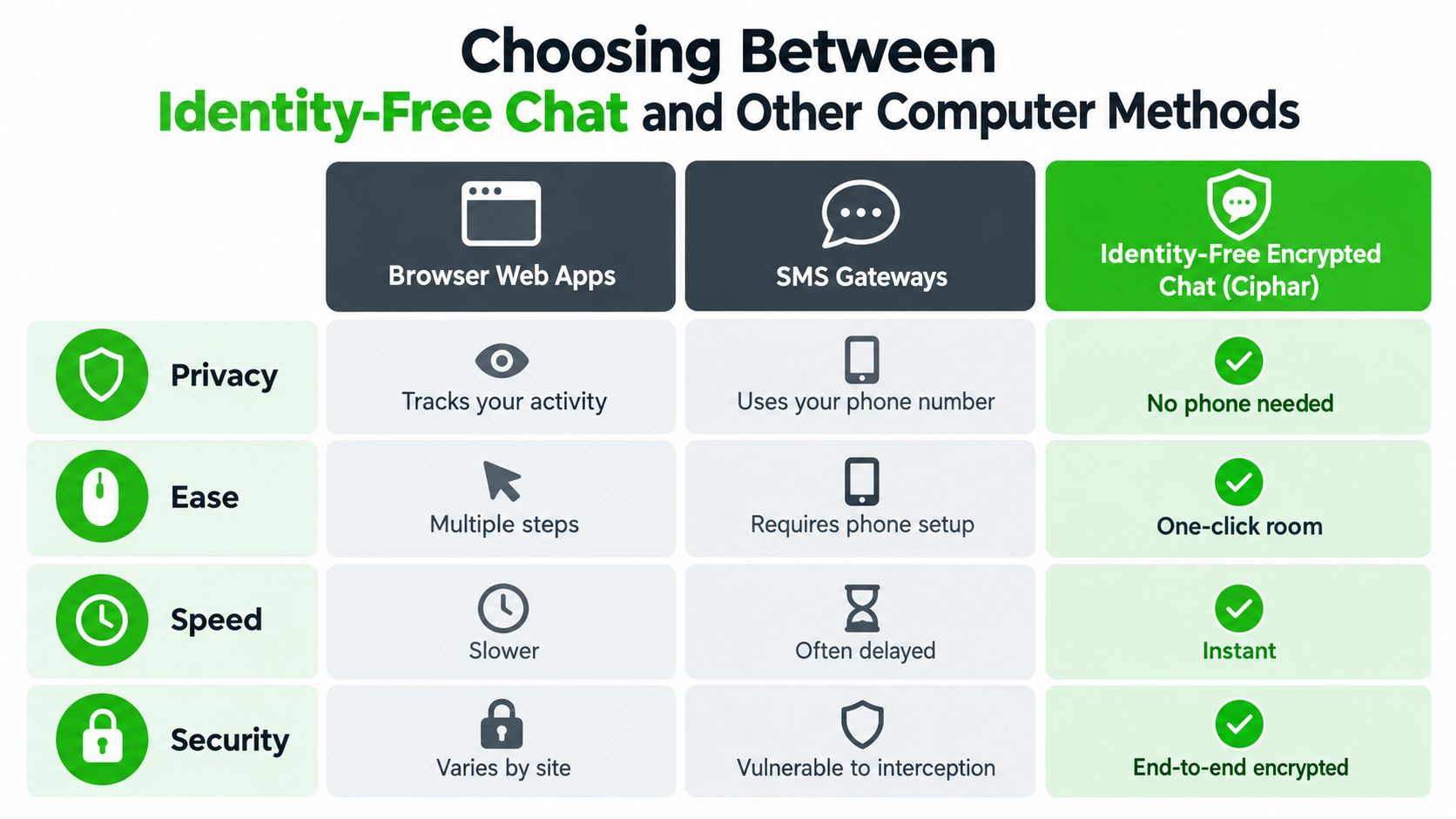
| Method | Identity exposure | Retention and recovery | Installation burden | Best fit |
|---|---|---|---|---|
| Browser web apps | Usually tied to a phone, account, or linked device | Often remains in the service or account history | Low, but pairing required | Fast replies to known contacts |
| SMS gateways | Exposes a phone-number relationship and email or carrier path | Ordinary carrier delivery and account records may remain | Low, recipient carrier details required | Routine updates to a phone number |
| Identity-free encrypted chat | No phone number or persistent account required | Temporary by design, with no archive or recovery | Browser only | Short confidential first-contact exchanges |
For a journalist contacting a source, a lawyer coordinating an initial client exchange, or an incident responder working with an untrusted counterparty, identity-free chat is the cleaner model when neither side needs a durable transcript. For a known colleague who needs a continuing encrypted conversation, use an established end-to-end encrypted messenger with an account or verified contact identity.
The rule of thumb is short. Use a paired app for speed, an SMS gateway for ordinary reach, and an identity-free encrypted room when identity separation and limited retention matter more than conversation history.
How to Text in a Browser Without an Account or Phone Number
A temporary encrypted room works when you need a browser keyboard but don't want to pair your computer with a phone or attach the exchange to a persistent account. The workflow is deliberately operational: create the room, separate the invitation details, verify the participant, communicate, then close the channel.
Create and distribute the room safely
Open the channel page in a private browser profile if the computer isn't exclusively yours. Choose the option to forge or create a room, enter a human-readable name that doesn't reveal the subject, and let the application generate the access key. Keep the room name neutral. “Tuesday briefing” is safer than a name containing a client, source, case, or incident identifier.
Send the link and access key through different channels. For example, send the room link by email and give the key by voice. Don't put both pieces in the same email, and never paste the key into the room you're trying to protect. Anyone who obtains both entry components can attempt to join.
Verify the person before sharing content
When the other participant enters, confirm their identity through a second trusted route. Ask for a known callsign, call them on a previously verified number, or use an established professional contact method. Check the encrypted test blob or equivalent admission signal before discussing the sensitive subject. This proves that the person possesses the right key, but it doesn't independently prove who is holding the device.
Treat ephemerality as a constraint
Ciphar provides browser-based encrypted rooms without an account, phone number, or installation. Its server-enforced channel lifetime is 60 minutes, and its design provides no expectation of recovery after expiry. The practical consequence is useful but unforgiving: copy out only the minimum operational detail you need, and don't treat the thread as an archive.
If the conversation ends early, use the burn control rather than leaving the room open. Then close the browser tab, clear any downloaded files, and remove sensitive material from the clipboard. The browser chat walkthrough is useful for checking the exact flow before you need it under pressure.
Privacy Habits That Actually Keep Computer Texts Safe
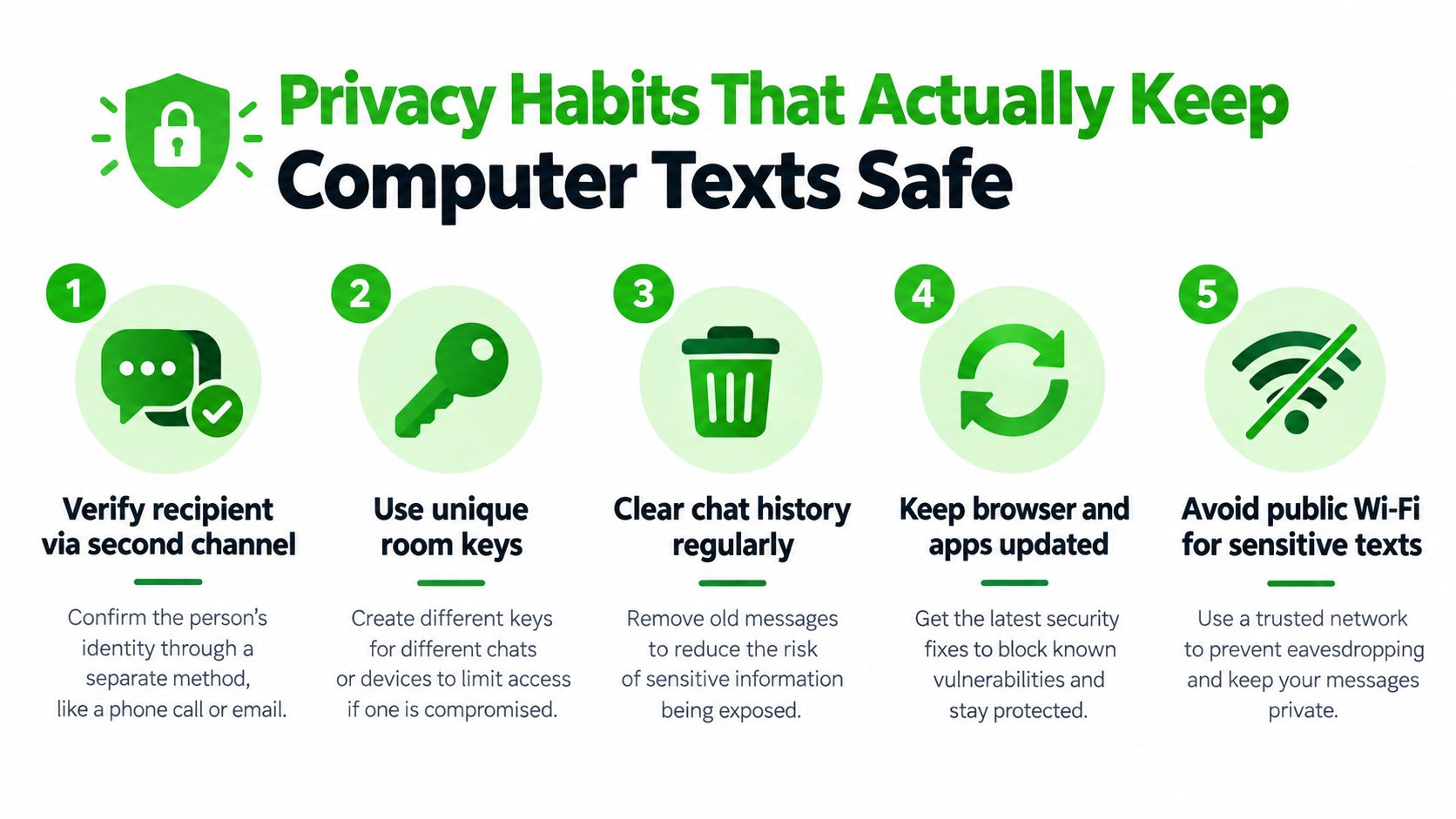
A secure transport can't rescue a careless recipient selection. Most damaging mistakes happen before encryption matters, when someone sends the right message to the wrong conversation, leaves a paired session open, or assumes that “sent” means “read.”
Use this seven-point control list across every computer-texting method:
Verify the recipient separately. Confirm the person through a second trusted channel before sharing confidential content. Don't rely on a display name, profile image, or room nickname.
Put the intended action first. Start with the question or decision the recipient needs to see. Short, structured messages reduce ambiguity and make proofreading easier.
Inspect attachments and links. Check the filename, destination, and intended recipient before sending. An attachment can reveal more than the text around it.
Separate access credentials from invitations. Send a temporary room link and its access key through different channels. Never publish the key inside the room or beside the link.
Control the endpoint. Don't leave Google Messages, Phone Link, WhatsApp Web, or a sensitive browser room open on a borrowed laptop. Use a private browser profile where appropriate, then sign out and close the session.
Use a deliberate send action. Enter-only submission makes accidental sends easy. Review the recipient, text, links, and files before clicking send.
Confirm delivery without assuming readership. A sent indicator proves that the service accepted or transmitted the message. It doesn't prove that the intended person has opened or understood it.
For sensitive work, separate usability from transport security. NIST's guidance on authentication explains why SMS is restricted for high-assurance use and points toward stronger cryptographic methods in situations requiring greater assurance. The same discipline applies to messaging: use encryption when confidentiality matters, share the minimum, and don't copy secrets into browser history, shared clipboard tools, or unmanaged devices.
A broader securing your digital assets guide can complement these messaging controls, especially when the computer is part of a larger professional environment. For the channel-specific question of how to encrypt text messages, focus on whether the provider can read the content, where the keys live, and what remains after the conversation ends.
Picking the Right Method in Under Thirty Seconds
Use this decision sheet before opening a tab:
You're replying to someone who already has your number. Choose Google Messages for Web, Microsoft Phone Link, or WhatsApp Web. Pair only on a computer you control, and remove the session afterward.
You need to reach a phone number with a routine update. Use an email-to-SMS gateway if you know the carrier and the content isn't confidential. Expect ordinary carrier handling, not private encrypted delivery.
You need a short confidential exchange with someone you don't want to link to your phone or account. Use an identity-free encrypted browser room. Verify the person separately, share the key out of band, and accept that the conversation won't become an archive.
You need an ongoing encrypted relationship with a known contact. Use Signal or a comparable end-to-end encrypted messenger that supports the continuity, verification, and history your work requires.
The right answer to how to text someone on a computer isn't always the familiar one. Pick the method that matches the identity exposure, retention, and trust problem you have, then apply the recipient and endpoint checks before sending.
Ciphar provides temporary, browser-based encrypted rooms for short conversations that don't require an account, phone number, or installation. If your next message needs identity separation and limited retention rather than a mirrored phone session, visit Ciphar and create the channel before you start typing.