You tap the message app, wait for the splash screen, and get nothing. Maybe it closes immediately. Maybe the icon flashes and disappears. Meanwhile, the message you need to send is becoming urgent, and the obvious fixes, restarting, reinstalling, guessing at your password, all carry different risks.
The useful question isn't only “why won't my message app open?” It's which failure mode are you seeing? A service outage, a local startup crash, an operating-system or default-app mismatch, and a defective beta release can look similar from the home screen but require very different fixes.
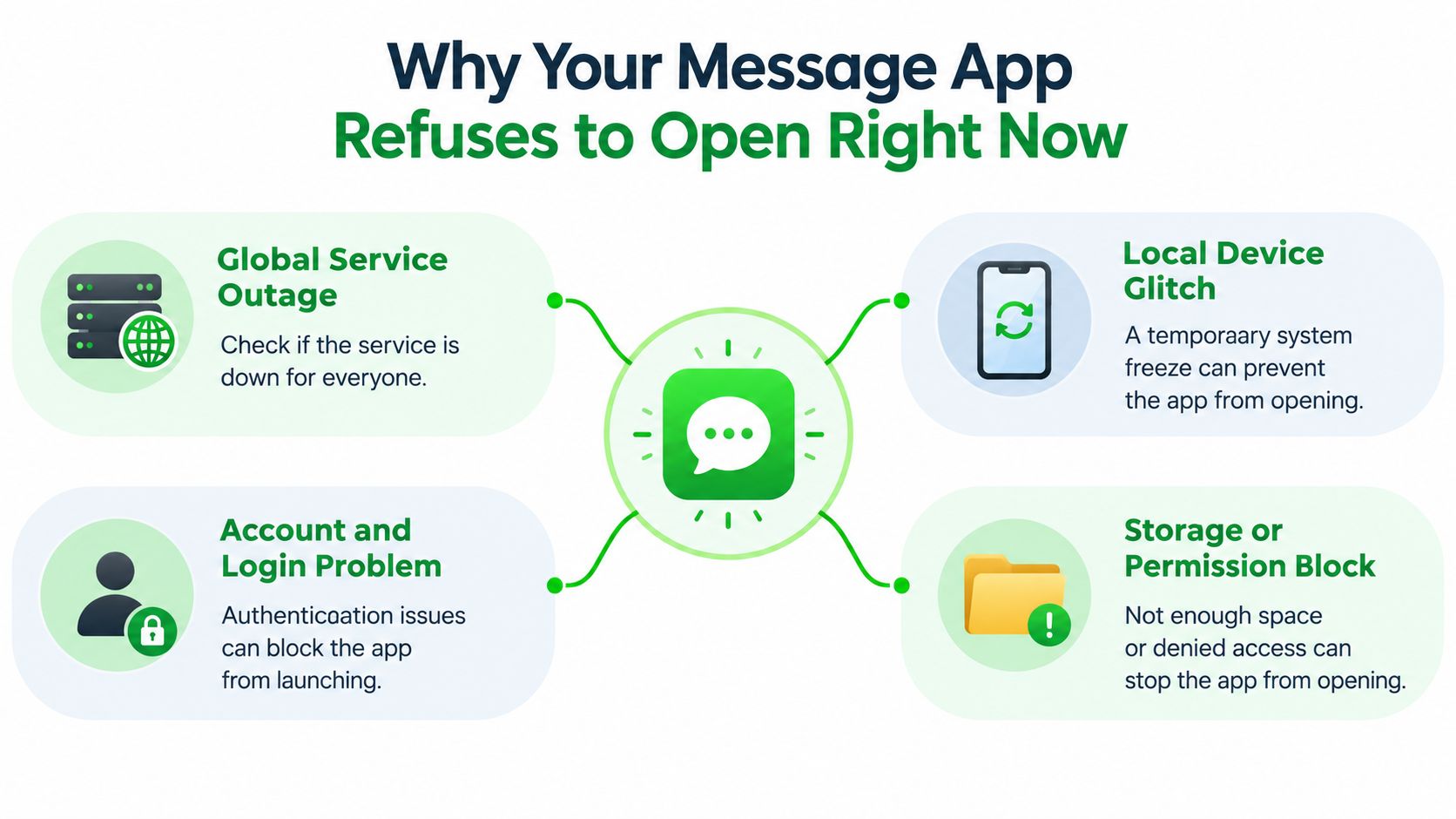
Why Your Message App Refuses to Open Right Now
A messaging app can be installed correctly and still be unreachable. WhatsApp's worldwide outage on October 25, 2022 showed that distinction clearly. WhatsApp had about 2 billion users globally in 2022, and Downdetector recorded more than 12,000 reports within half an hour. At the incident's peak, reports included about 68,000 in the United Kingdom, 19,000 in Singapore, and 28,413 in India. Users couldn't send or receive messages even though the app remained installed on their phones. (Times of India coverage of the WhatsApp outage)
That is the first branch: service outage. If the app opens but messages fail, or people on multiple networks report the same problem, stop changing local settings. Reinstalling won't repair a server-side failure.
The four failure modes
Service outage means the app or its backend is unavailable to many users. An app can show a blank state, hang during connection, or fail after launch. Check an official status page and Downdetector before touching stored data.
Local startup crash happens on your device before the first usable screen appears. The app may close on tap, disappear after its logo, or open only briefly. This usually points toward corrupted local state, a stale app build, an incompatible runtime, or resource pressure.
OS or default-app mismatch appears after a system update, device migration, carrier change, or change in the default texting application. Android's messaging stack can depend on carrier support for SMS, MMS, or RCS, and the wrong default app can make a healthy application look unavailable. (Google's messaging support guidance)
Beta regression is release-specific. If the problem began immediately after an update and other users with the same app version report it, clearing cache repeatedly is unlikely to help. Look for a known issue, roll back the affected build where the platform allows it, or install a corrected release.
If you need background on how messages can pass through an intermediary without the app itself being the whole communication path, see this explanation of a relay server. For immediate troubleshooting, identify what happens after the tap: no response, instant closure, a login block, or a network error. That observation determines the safest next move.
Quick Triage Before You Change Anything
Don't clear data first. A reset can remove locally stored conversations, drafts, downloaded media, or device-specific settings, depending on the app's backup design. Spend a short interval collecting evidence while your local state is still intact.
Run the non-destructive checks
Check whether the service is down. Open a browser and search for the app's official status page or current outage reports on Downdetector. If reports are widespread, wait and use another channel rather than reinstalling.
Test the connection without changing app data. Toggle airplane mode, turn it off, then try both Wi-Fi and mobile data if available. A connection problem usually produces a loading or send failure, while a true startup crash often happens before the app can display its first screen.
Confirm the account state. If the app shows a sign-in prompt, verify that the account or phone number is correct before changing credentials. Don't repeatedly enter passwords or verification codes while the app is unstable, because that can create a separate authentication problem.
Check storage and permissions. Low available storage can prevent an app from creating temporary files. Review the app's permissions, especially notifications, contacts, microphone, camera, and storage access where those permissions are relevant to the client.
Try another access route. If the service supports a web client, test it in a browser or on another device. If the same account works elsewhere, the failure is probably local to the original device. If the account fails everywhere, investigate service availability or account access.
Restart the device. A reboot is still useful, but it should be a diagnostic step, not the entire troubleshooting plan. It clears temporary system conditions without immediately destroying app data.
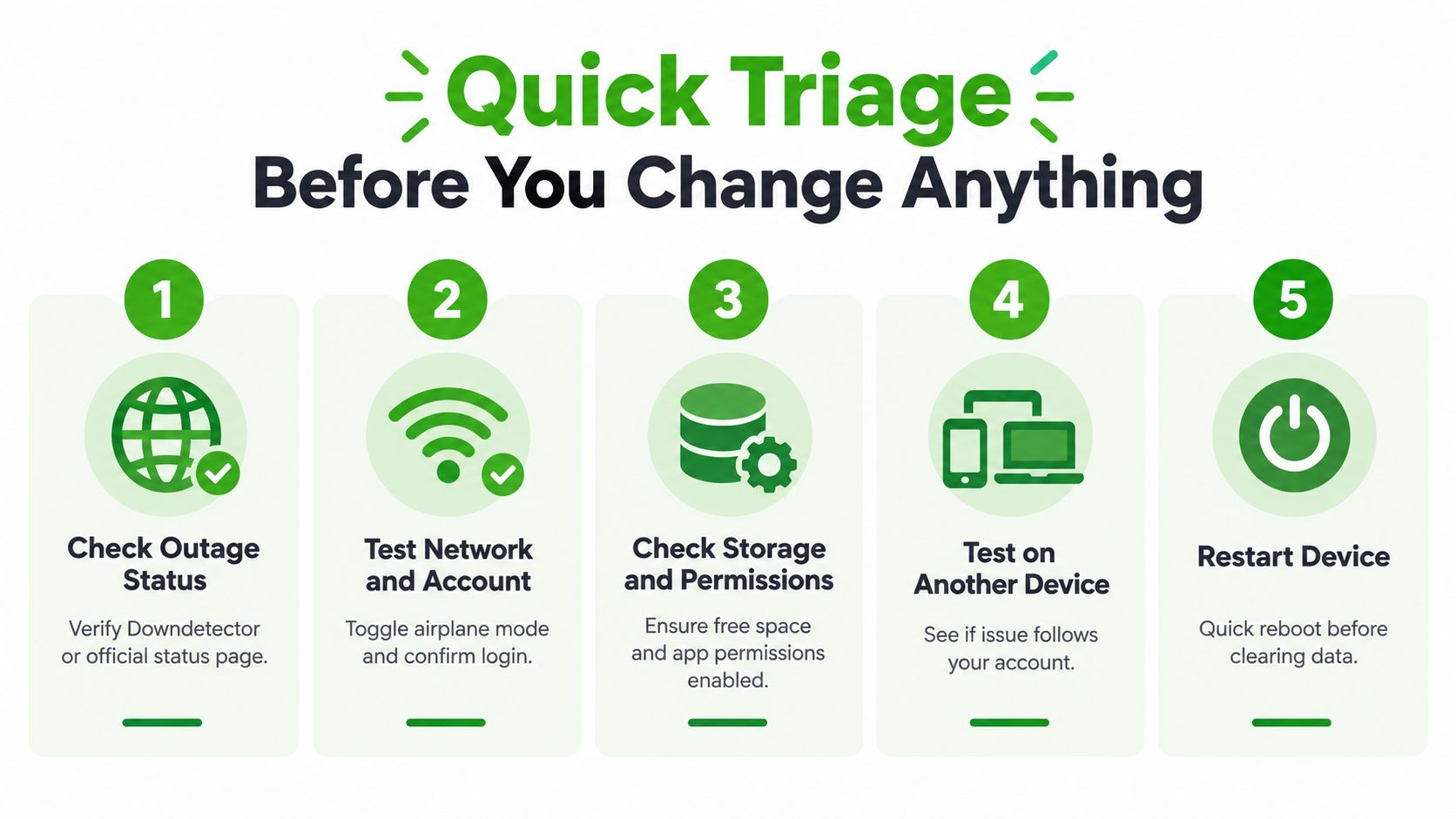
Protect the conversation first: If the app opens even once, back up or export what the service supports before clearing data or uninstalling it.
Google's Android support sequence places updates before reinstalling, followed by force stopping, clearing cache or data, rebooting, and reinstalling as needed. That order matters because reinstalling the same defective or outdated build can reproduce the same launch failure, while clearing only cache won't fix corrupted application data. (Google Play troubleshooting steps)
If the network behaves strangely across several apps, follow a reputable network settings reset tutorial before assuming the messaging service is broken. A network reset can remove saved Wi-Fi and connection settings, so treat it as a later network-specific step, not a first response to an app that crashes before loading.
For users diagnosing a browser session, account persistence and sign-in state can matter as much as connectivity. This overview of session management provides useful context for why a browser or app can retain an invalid session even when the service itself is online.
Platform Specific Fixes That Actually Work
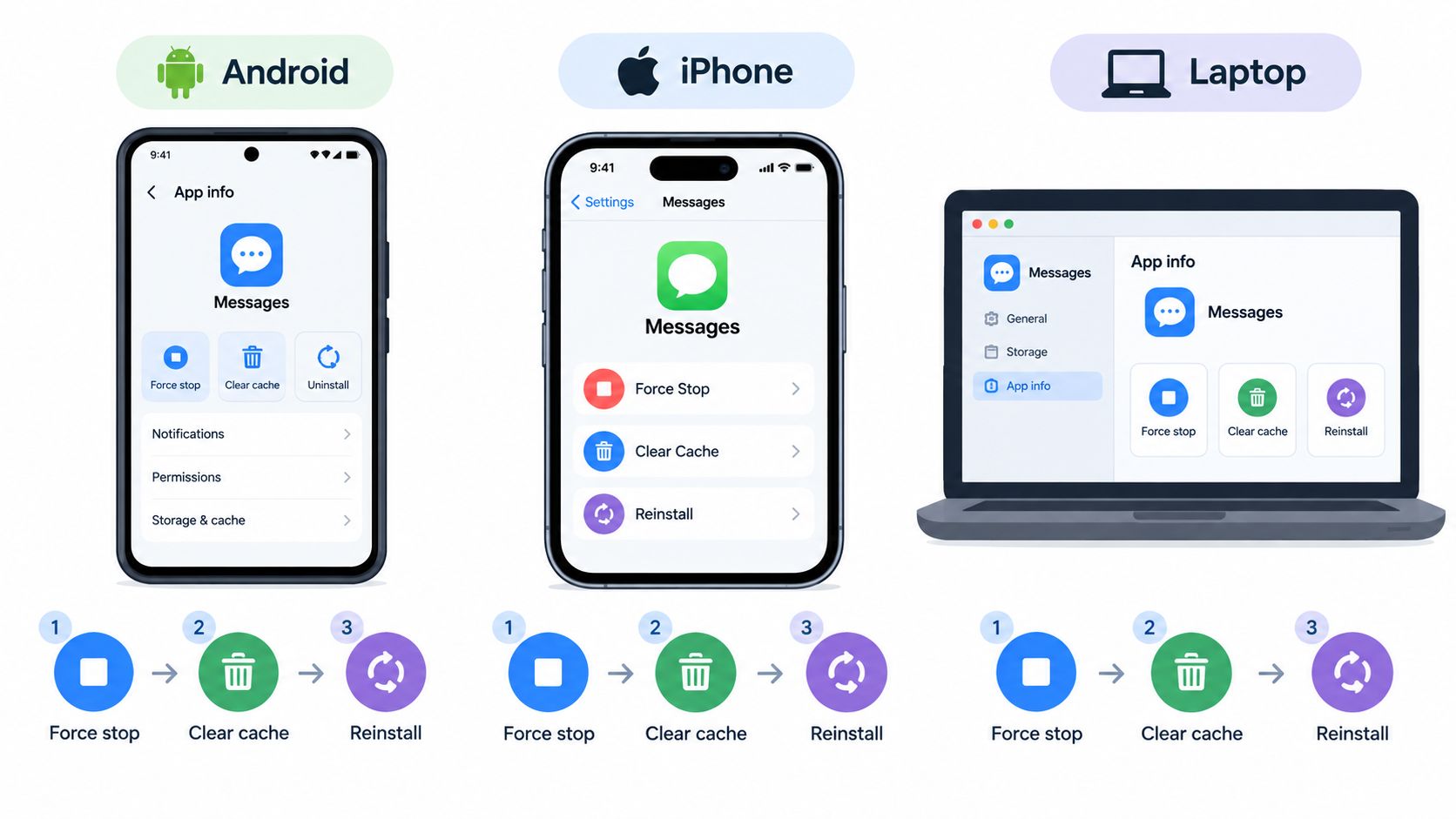
A messaging app that will not open usually falls into one of four failure modes: the service is down, the app crashes during startup, the operating system or device policy blocks it, or a beta release has regressed. Identify the mode before resetting anything. Android, iPhone, and desktop clients expose different controls, so update first and delete data only when the evidence supports it.
Android
Start at Settings > Apps > your messaging app > Force stop, then open the app again. This ends a stuck process without removing stored data. If several apps are failing, check the device network or an outage before changing app storage.
Open the app's Play Store page and install any pending update. Google's troubleshooting flow checks updates before reinstalling because an old binary or incompatible cached state can repeat the same launch failure. If the app still closes, return to its storage settings and clear the cache.
Clearing storage or data has a larger impact. It can sign you out and remove local content, so confirm that important chats are backed up or synchronized first. Restart the phone after clearing data. Reinstall only if the update and reset steps fail, and use the official store listing.
Permission errors and low storage point to an operating-system or policy problem rather than a simple stuck process. Check app permissions and available space. Contacts, notifications, microphone, or camera access may support specific features, but granting every permission will not repair a crash. Allow only what the app requires.
iPhone and iPad
Apple's guidance starts with force closing the app, restarting the device, checking for an app update, checking for an iOS or iPadOS update, and redownloading the app if the failure remains. (Apple's official app troubleshooting guidance)
Force close the app from the app switcher, reopen it, and check the App Store for an update. Then inspect Settings > General > Software Update. A launch failure can occur when the app expects system components that the installed operating-system version does not provide or cannot run correctly.
If local documents or data may matter, try offloading the app before deleting it. Offloading removes the application while retaining certain associated data, although the result depends on the app's synchronization model. Deleting and redownloading is more thorough, but it carries greater risk for locally stored conversations, drafts, and media. Verify backup status before either action.
Desktop and web clients
For a browser messenger, refresh the page and test a private window. Sign out only when the session appears corrupted. If the private window works, an extension, stored site data, or a browser profile setting is a stronger suspect than the messaging service itself.
Disable extensions one at a time, starting with content blockers, privacy tools, and script controls. Avoid wiping the entire browser profile immediately. That can remove useful sessions and preferences while concealing the setting that caused the conflict.
For a desktop app, fully quit it rather than closing only its visible window. Install the latest release, restart the computer, and test again. Reinstall after preserving locally stored files or recovery information. A web client can provide temporary access when the installed binary is the failing component, including urgent chats that need a browser-based encrypted fallback.
Security symptoms require a separate check. If the account behaves differently after a suspicious message or unexpected sign-in, review WhatsApp scam protection impact on businesses instead of treating every unusual prompt as a routine launch error.
When the App Crashes Before It Loads
A startup crash occurs before the first screen renders. That timing separates it from a normal network failure, where the interface usually appears and then waits, reports an error, or fails after login.
Watch the sequence carefully. Does the app close immediately on tap? Does a logo or splash screen appear first? Does it reach the login screen and then stop? Repeatability matters too. A crash that occurs on every launch points toward deterministic local state, a bad release, or an OS compatibility problem. A sporadic freeze may involve memory pressure, a temporary system service, or a race during initialization.
Crash-testing guidance identifies recurring startup causes such as failed data migration, a configuration fetch that cannot complete, SDK initialization order, corrupted local state after an upgrade, missing runtime resources, and memory exhaustion. (Kobiton's mobile app crash testing guide)
Use the timing as evidence
Run this simple diagnostic sequence:
- Observe the first failure point. Record whether the app dies before UI draw, during the splash screen, or after a visible login page.
- Repeat once or twice. If the same action produces the same closure, treat it as a launch-stage defect rather than a random network hiccup.
- Update the app and runtime. Install the current app build and update the operating system or relevant web runtime.
- Reset the least destructive state first. Force stop, then clear cache. Move to application data only after checking backups.
- Remove variables. Close heavy apps, disconnect unnecessary accessories, and test without unusual overlays or automation tools.
Don't keep changing multiple settings between attempts. If you update, clear data, disable permissions, and reinstall at once, you'll lose the evidence that identifies the cause.
If the app opens after a cache or data reset, the service probably wasn't the original problem. The local state or version compatibility was.
Android's troubleshooting guidance supports the practical order of update, reset, reboot, and reinstall, while startup-crash testing adds the diagnostic value of checking whether the failure happens before the interface appears. Together, those approaches prevent a common mistake: blaming the message provider for a device-side process that never reaches the network layer.
If the app still crashes after a clean reinstall and current system software, capture the device model, OS version, app version, exact crash timing, and any visible error text. Support teams can act on that information. “It doesn't work” usually can't distinguish a server outage from a beta regression or a migration failure.
Updates Beta Bugs and Default App Changes
Generic cache advice misses failures introduced by a specific release. In August 2025, Google Messages beta users on Android 16 and Android 16 QPR1 reported that the app closed within seconds of opening. Restarting or clearing the cache often failed to help. The practical workaround was to remove the problematic update and reinstall a fixed version, according to Android Authority's report on the Google Messages beta issue.
Use a different diagnostic order for suspected regressions. Search the app name, version, device model, and operating-system version together before repeating a reset. Beta forums, official issue trackers, and recent support posts may identify a bad release faster than more local experimentation.
Policy changes can produce a separate failure mode. Samsung's planned change to its default Messages app in the United States means some users may need to move to another messaging client. Carrier support and the selected default texting application also determine whether SMS, MMS, and RCS work correctly.
An app may be healthy while the device routes messaging functions elsewhere. Check the default SMS application, carrier support, RCS registration, and whether a phone migration left two messaging clients competing for the same role.
Choose the right fix for your failure pattern
| Symptom Pattern | Most Likely Cause | Safest Next Action |
|---|---|---|
| Many users report failures at the same time | Service outage | Check official status information and wait |
| The app closes immediately after a recent update | Release regression or incompatible build | Check known issues and install a fixed version |
| The app fails after an OS upgrade | Local migration or runtime mismatch | Update the app and system, then reset local state |
| SMS or RCS functions fail after changing phones | Default-app or carrier mismatch | Confirm the default texting app and carrier support |
| The app works on another device or browser | Local device state | Use the platform-specific reset sequence |
| The app opens but cannot send messages | Network, account, or service-layer failure | Test another connection and confirm account status |
Treat beta enrollment as a likely variable during a time-sensitive messaging failure. Stable releases trade early access for fewer unverified changes, while rollback options differ by platform. If urgent chats cannot wait, use an established browser client or another trusted channel rather than repeatedly reinstalling an unstable build.
Stay Connected and Prevent the Next Failure
Once the app works again, reduce the chance of repeating the same incident. Keep the operating system and messaging clients current, maintain available storage, review permissions after major updates, and confirm that backups run. A backup you haven't tested is an assumption, not a recovery plan.
Keep a second route for urgent communication. That might be a browser client, a trusted email address, a phone call, or another established messenger. The fallback should match the sensitivity of the conversation. A public social platform may be convenient, but it isn't automatically appropriate for confidential material.
If the installed app remains unavailable and you need a temporary channel without creating an account or installing another application, chat on a browser is one possible route. Ciphar provides browser-based, client-side encrypted conversations through temporary channels that expire after 60 minutes, with no account, phone number, or installation required. It is designed for short-lived communication, not permanent message history or a replacement for a regular messenger.
Escalate with evidence: Send support the app version, operating-system version, device model, failure timing, recent update history, and exact error text.
Avoid sending private message contents or recovery codes in a support ticket. If you can reproduce the crash, describe the shortest sequence that triggers it. If the problem began after an update, include that timing and whether another device or browser still works.
The practical lesson is simple. “Won't open” isn't one problem, so don't apply one destructive fix to every symptom. Identify the failure mode, preserve your data, update before reinstalling, and keep a browser-based fallback ready before the next urgent message arrives.
If your messaging app is still failing, visit Ciphar to create a temporary encrypted browser chat without an account or installation. Use it for short-lived coordination while you diagnose the app, then let the channel expire or burn it manually when the conversation is finished.