You're about to present a contract, troubleshoot a client's system, or walk a colleague through a sensitive workflow. You click Share screen, and suddenly a private email preview, an unrelated browser tab, or a confidential document appears to everyone in the call. The problem wasn't the meeting software. It was treating your entire desktop as if it were safe to broadcast.
Learning how to share my screen securely means managing what the other person can see, what your device can capture, and how long the collaboration channel should remain open. The safest workflow usually combines selective sharing, controlled permissions, muted notifications, and a deliberate stop-sharing procedure.
The Hidden Risks of Default Screen Sharing
A lawyer joins a client call with a document ready to review. The document is open on one monitor, but the meeting application is sharing the entire desktop. An email notification appears in the corner with a subject line about another client. A message app flashes next. The presentation continues, but the privacy boundary has already failed.
Screen sharing is a live broadcast of your digital workspace, not just a view of the file you intended to show. Anyone watching may see windows you open, notifications that arrive, browser tabs you switch to, and information displayed by background applications. Cisco Webex gives the same practical warning in its guidance on sharing content, which recommends muting notifications and closing personal or sensitive documents before sharing.
Security rule: If you wouldn't put it on a public projector, don't include it in an entire-screen share.
The exposure is especially serious for journalists, lawyers, healthcare teams, and incident responders. A journalist may have a source's identity in a browser tab. A lawyer may have privileged correspondence open in an email client. A healthcare professional may see patient information in a notification or an adjacent application. These risks resemble other forms of workplace eavesdropping, so it's useful to review practical ways to prevent eavesdropping as part of the same operational discipline.
Treat the desktop as a security perimeter
Before selecting a share target, decide what the recipient needs. If the task is to explain a spreadsheet, share that application window. If the task is to demonstrate a web workflow, share the specific browser tab. Full-desktop sharing should be the exception, not the reflex.
For teams that need help monitoring devices and responding to user-side problems, 24/7 managed support services can provide an additional operational layer. That support doesn't replace careful sharing habits, but it can help identify permission, endpoint, or configuration issues before they turn into disclosure incidents.
Platform Specific Sharing Controls and Permissions
The operating system decides what a meeting application is allowed to capture. The meeting application then decides which display, window, or tab you share. Secure setup requires checking both layers rather than assuming that a successful permission prompt means the correct content is selected.
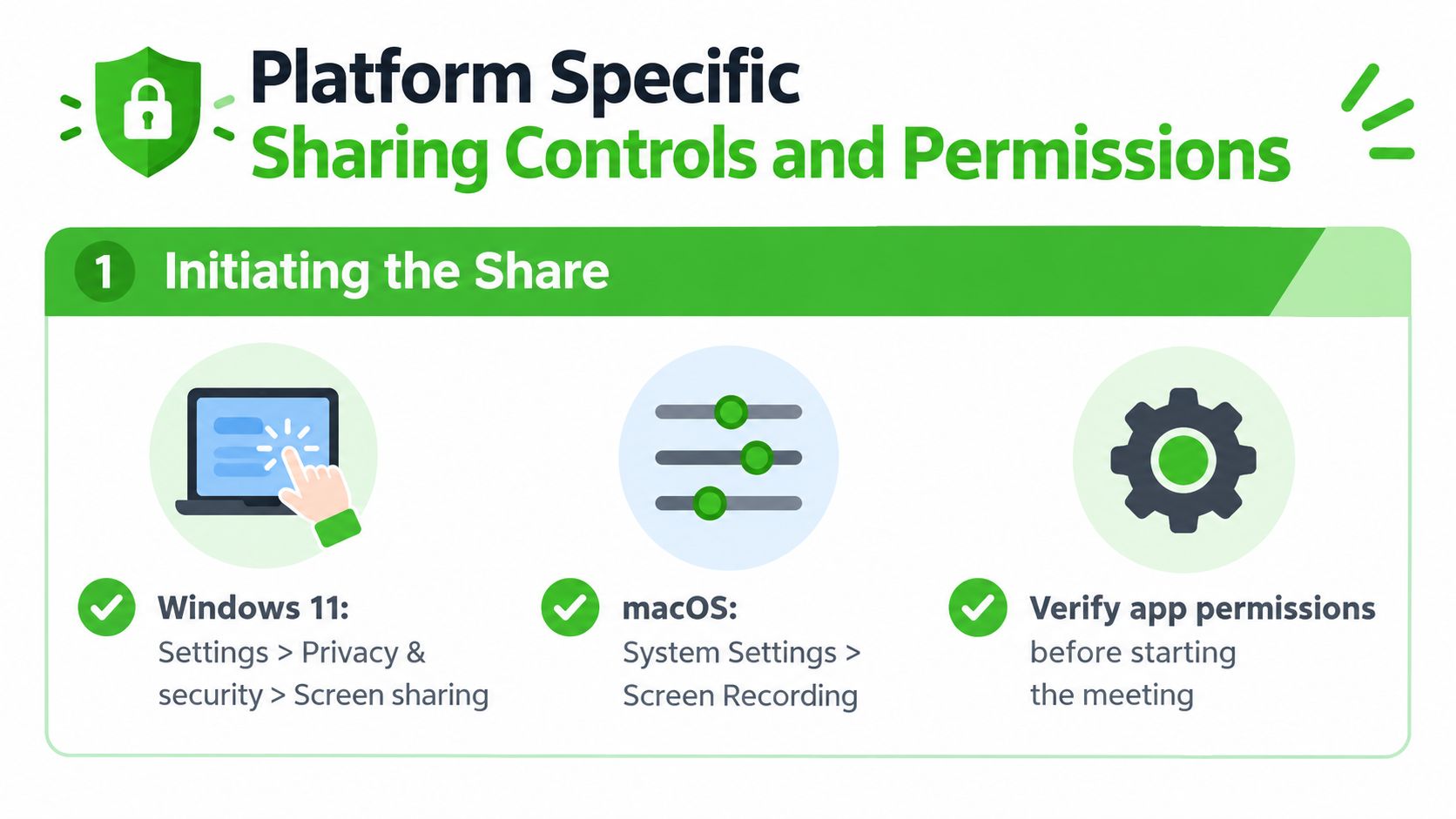
Windows 11
On Windows, open the meeting application and select Share. Choose an individual application window, browser tab, or intended display instead of selecting the entire desktop by habit. If you use more than one monitor, confirm the display name and preview before you begin.
Windows may show a system permission prompt or a protected-content warning depending on the application and capture method. Read the prompt instead of dismissing it automatically. If the share control is unavailable, check Settings, then Privacy & security, and review the relevant screen-capture or application permissions exposed by your Windows build and meeting software.
A window share creates a narrower boundary. If another application moves in front of the selected window, many meeting tools continue showing only the chosen application, although you should verify this behavior in your specific platform before relying on it.
macOS
macOS commonly requires explicit screen-recording approval. Open System Settings, choose Privacy & Security, then open Screen Recording. Enable the meeting application or browser you plan to use. macOS may require you to quit and reopen that application before the permission takes effect.
Select Screen Recording, not just microphone or camera access. Those permissions control different capabilities. A meeting app can have permission to use the microphone while still being blocked from capturing the display.
If the meeting service offers a choice between an entire display, a window, and a browser tab, choose the narrowest option that supports your task. For a more detailed access-control mindset, review this guide to preventing unauthorized access.
iPhone and Android
On iPhone, start the meeting's screen-share action and use the system Screen Recording or broadcast prompt. Select the meeting application when iOS asks where to send the broadcast, then return to the meeting. If you need spoken explanation, check the microphone control in the broadcast prompt before starting.
Android devices use a system confirmation dialog for screen capture. Read the warning, approve the intended application, and verify whether device audio or microphone audio is enabled. Notifications may still appear during the broadcast, so enable a suitable interruption-control mode before sharing.
Use a short private test call whenever you're working with a new device or application. Confirm the recipient can see the intended content and hear the intended audio, then stop the test and reset the permissions if the device will be used by someone else.
Browser Native Sharing and Ephemeral Secure Channels
Browser-native sharing removes some of the operational burden of desktop clients. Modern browser screen sharing relies on the WebRTC foundation and the Media Capture and Streams API. Mozilla documents these web capabilities, while Chrome's early implementation used RTCPeerConnection together with desktop and tab capture APIs. The WebRTC timeline moved from Ericsson Labs' first implementation in January 2011, through the first W3C draft in October 2011, to the first cross-browser video call in February 2013 and cross-browser data transfers in February 2014, as documented in the WebRTC history.
That evolution explains why a browser can request access to a specific tab or display without requiring a separate installation. It doesn't make every browser session safe by default. You still need to inspect the sharing picker, confirm the selected source, and understand where audio is routed.
Desktop client versus browser channel
A conventional desktop client can offer rich controls, but it also introduces downloads, updates, local permissions, account administration, and a persistent application footprint. Those controls may be appropriate for recurring meetings and managed collaboration, especially when an organization has approved the client and configured it through endpoint policies.
A browser channel is often better suited to a short, controlled exchange. You can open a meeting page, grant access for the current session, share a tab or window, and close the session afterward. For sensitive work, the important question is not only whether traffic is encrypted in transit, but also whether the service stores readable content, retains an archive, or requires identity details that the participants don't need to exchange.
For a one-off collaboration, browser-based encrypted tools with zero-knowledge and ephemeral designs can reduce that persistent footprint. They can be useful when participants need temporary coordination without installing an application or creating a long-lived account. Review the workflow described in chatting securely in a browser before choosing a tool for confidential work.
Check the browser boundary
When you share from Chrome or Edge, select a specific tab for a web demonstration, then enable tab audio only if the content genuinely needs it. A tab share is safer than an entire-display share, but it can still expose sensitive information inside that tab, including account names, URLs, notifications generated by the site, and data loaded after the share begins.
Before using a WebRTC service for sensitive communication, test its permission behavior and network exposure with a reputable WebRTC vulnerability scanner. A test doesn't certify the service or replace a security review. It helps you identify whether your browser and network are revealing information you didn't intend to expose.
Securing Your Desktop Environment Before Broadcasting
The strongest share setting can't protect information that appears in the selected window. A notification can arrive after you start, a password manager can open over the presentation, or an accidental keyboard shortcut can move you to another tab. Your pre-flight routine needs to control both the capture target and the surrounding desktop.
Use a dedicated presentation state
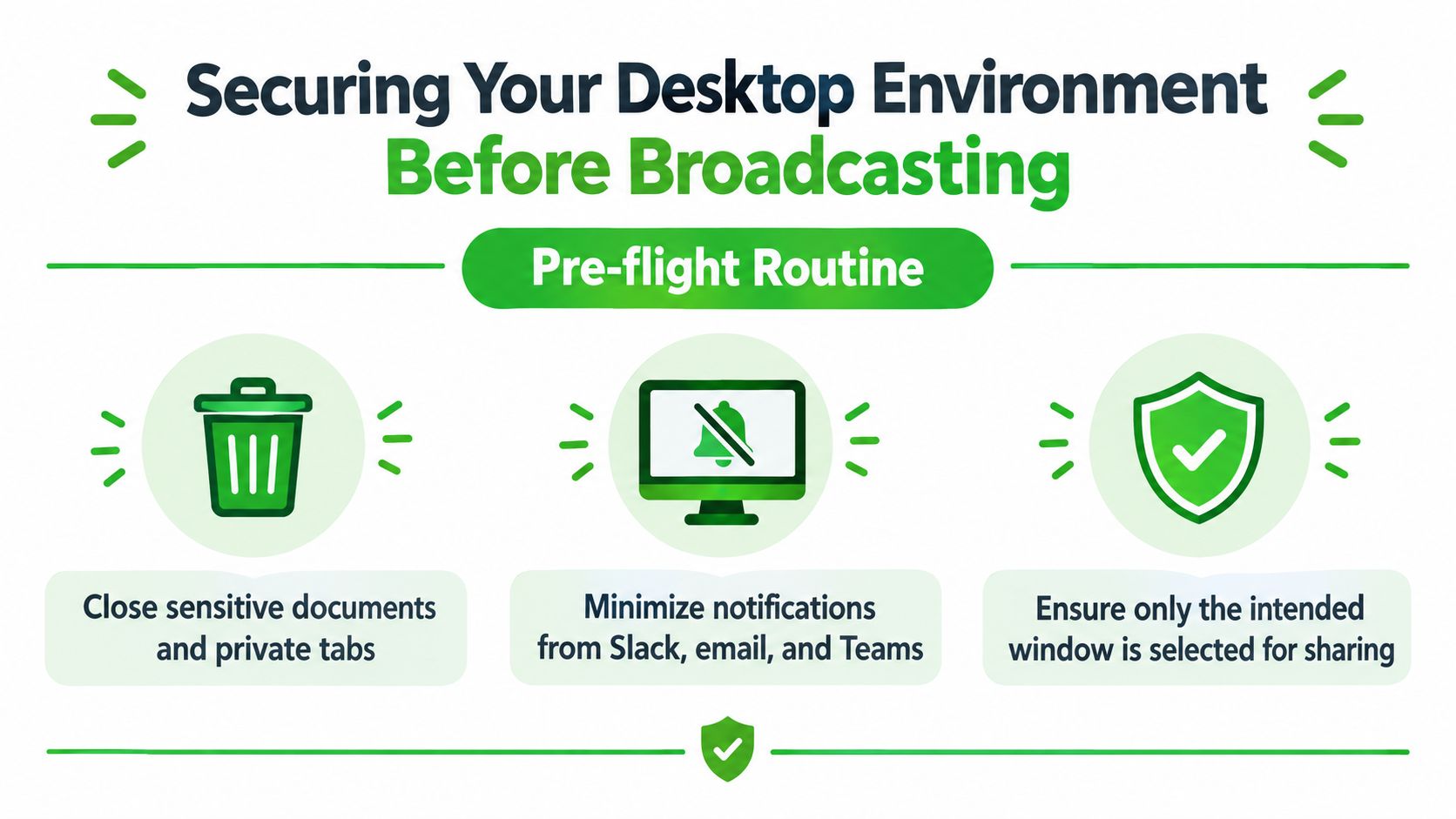
Open only the material required for the session. Close private documents, unrelated browser tabs, password managers, terminal windows, cloud drives, and internal chat applications. If you need reference material, place it on a separate, non-shared display or keep it outside the presentation workspace.
Then enable Do Not Disturb or the equivalent focus mode. Mute email, Slack, Teams, calendar, operating-system alerts, and security notifications that could reveal subject lines or names. Zoho's screen-sharing safety guidance identifies notification pop-ups as a common source of accidental disclosure and reports that over 50% of employees have accidentally shared sensitive information in virtual meetings.
Choose the smallest useful source
Selective sharing works because it limits what the audience can observe. Vendor guidance recommends a shared display set to 720p or 1080p height for readable content without unnecessary interface scaling, as described by WebinarGeek's screen-sharing instructions. The setting is useful when text looks too small, but it doesn't change the privacy boundary.
Use this sequence before a high-stakes session:
- Prepare the content: Open the required file or tab and close everything else.
- Separate the displays: Keep notes and private references on a monitor you won't share.
- Suppress interruptions: Activate focus mode and pause visible notifications.
- Inspect the picker: Confirm the exact window, tab, or display selected.
- Preview the result: Use the meeting's presenter or self-view if available.
- Stop decisively: End sharing before discussing anything outside the presentation.
Shared canvases are often preferable when participants need to co-create. Screen sharing is better for a controlled demonstration, not for exposing an entire working environment. This distinction matters for professionals who need to explain a process while keeping unrelated client, source, or patient information out of view.
Troubleshooting Capture Failures and Permission Blocks
A greyed-out share button, black preview, or missing application usually has a specific cause. Start by identifying which layer failed: the operating-system permission, the browser permission, the meeting application, or an organizational security policy.
Reset the operating-system permission
On macOS, revisit System Settings > Privacy & Security > Screen Recording and confirm the exact application is enabled. If it was enabled before but capture remains black, turn the permission off, remove the application entry if macOS allows it, add or re-enable the application, and fully quit and reopen it. A browser-based meeting may require permission for the browser itself rather than the meeting website.
On Windows, close other applications that may be using capture resources, restart the meeting application, and check whether the selected source is a protected window. Banking portals, streaming services, and some enterprise applications intentionally block capture. A black result in those cases may be a policy decision rather than a malfunction.
Reset browser and meeting controls
A browser can retain a denied permission for a site. Open the site information controls beside the address bar, reset the relevant permissions, reload the page, and approve screen capture again when prompted. Test a specific tab or window before attempting the full display.
Hardware acceleration and graphics-driver behavior can also interfere with capture. If a tab share fails while window sharing works, test another browser, update the browser, and ask your administrator before changing hardware-acceleration settings on a managed device. Don't install an unfamiliar “screen-share fix” offered through a pop-up. The security risk is real: an industry estimate cited more than 330 million credentials compromised by infostealer malware in 2024, and fake or compromised screen-sharing applications can provide attackers with an attractive delivery route, as noted in the Zoho guidance linked above.
For a structured comparison of capture options, consult Rendemo's collection of tools for better demos, then select only software approved by your organization.
Check for deliberate enterprise blocks
Mobile-device management, endpoint protection, data-loss-prevention rules, and remote-work policies may intentionally prevent screen capture. If the issue appears only on a company device, don't bypass the control. Record the application, operating system, permission state, error message, and whether window or tab capture works, then send those details to IT.
A security policy that blocks capture may be protecting regulated or confidential data. The right fix is an approved workflow, not an unverified extension, sideloaded application, or command that weakens endpoint controls.
The Professional Pre Share Security Checklist
Before sharing, ask what the audience needs to see and select only that source. Confirm the active window, inspect the participant preview if available, and keep private notes on a separate display or device. A full desktop is rarely necessary for a focused demonstration.
Check that notifications are suppressed, microphone and system-audio routing are intentional, and the communication channel has the encryption and retention properties your organization requires. Don't assume that a browser prompt or lock icon answers every storage and identity question.
Agree on a stop protocol with the other participant. Use a clear phrase or visual signal, stop sharing immediately when the task ends, and close the browser tab or burn the temporary channel when the work is complete. Professionals handling privileged, medical, journalistic, or incident-response material should make this routine as automatic as locking a workstation.
Ciphar provides browser-based, zero-knowledge encrypted chat with one-time channels, client-side encryption, and a manual burn option for short, identity-free conversations. Visit Ciphar to coordinate sensitive work without an installation, account, or persistent conversation archive.